
Performing Manual Scans
Manual scans in Pluro allow you to instantly check specific parts of your website for accessibility issues. Whether you’ve made recent changes or need to scan a particular page on demand, manual scanning provides flexibility and immediate feedback. Follow the steps below to perform a manual scan.
Steps to Perform a Manual Scan
Step 1: Access the Scanner
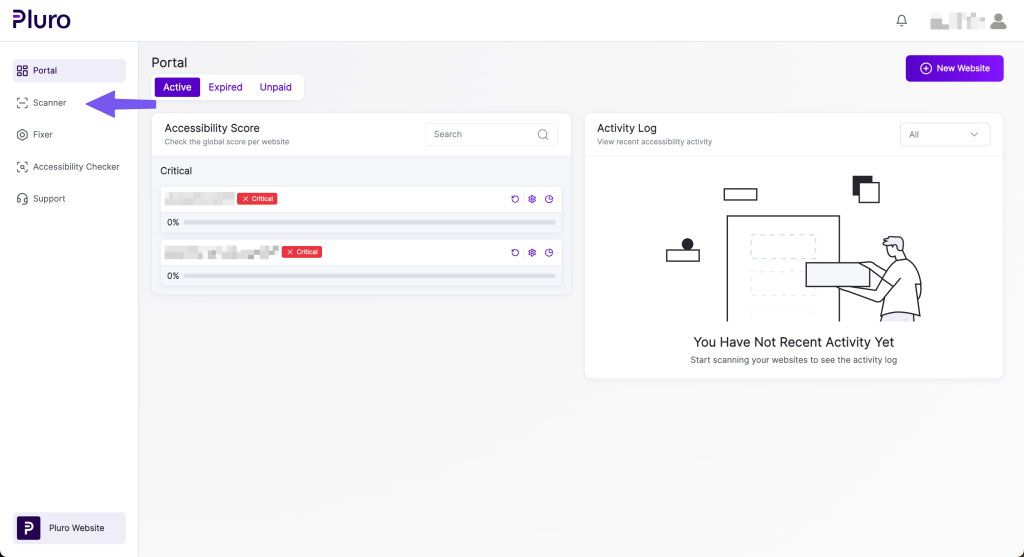
- From any screen in the platform, click the Scanner button in the main menu.
Step 2: Select Your Website
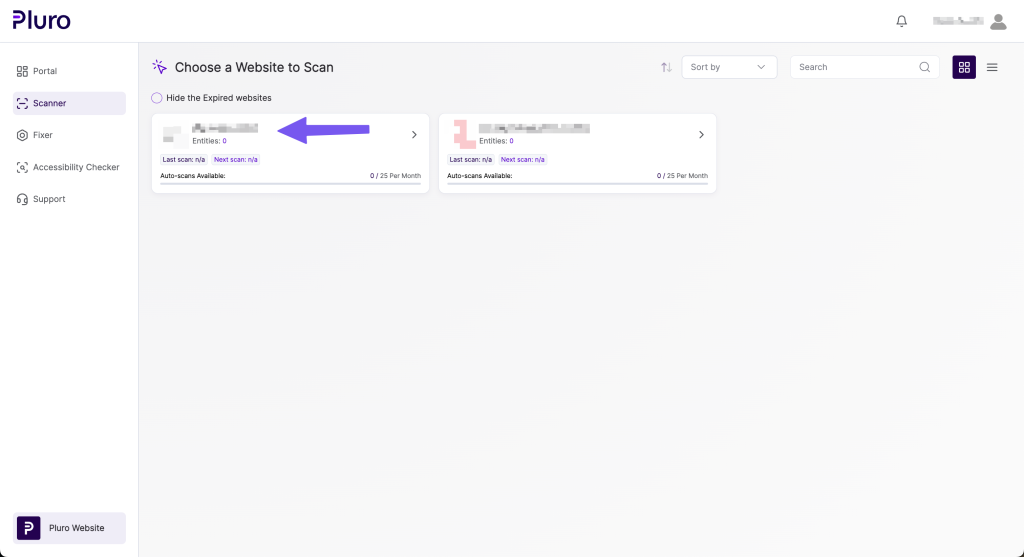
- Click the website you want to perform a manual scan for.
Step 3: Navigate to the Manual Scanner Tab
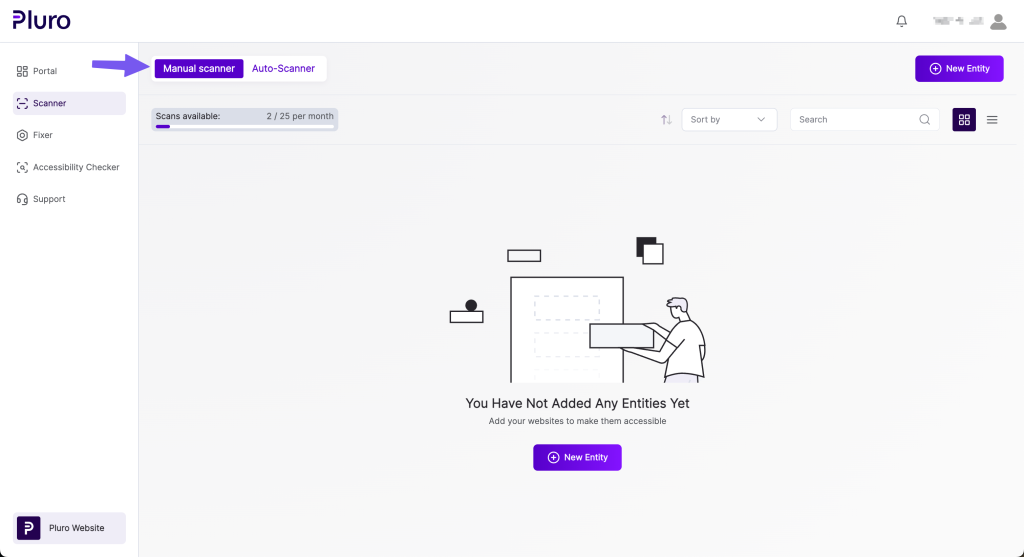
- Click the Manual Scanner tab to open the manual scanning options.
Step 4: Click ‘New Entity’
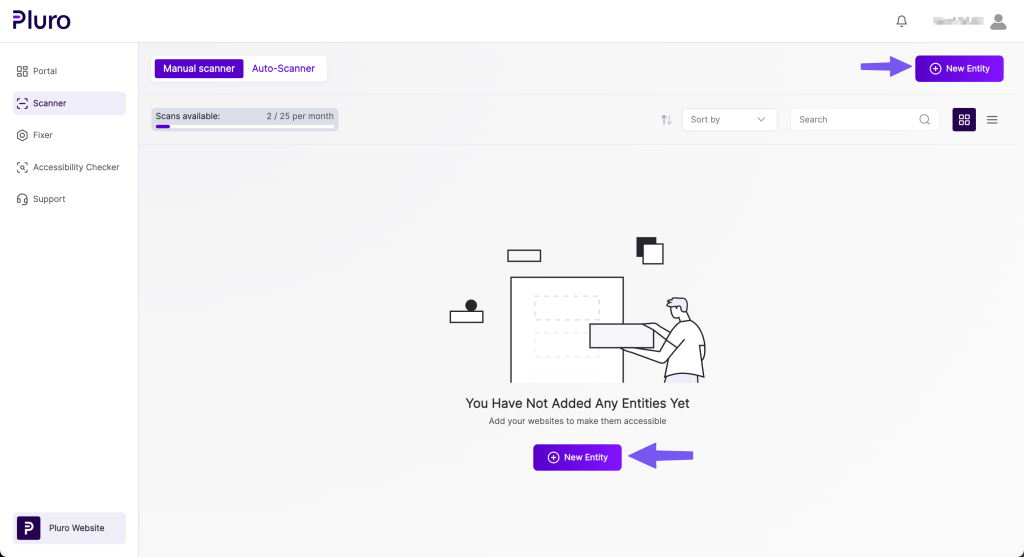
- Click the “New Entity” button to begin setting up the manual scan.
What is an Entity?
An entity is any part of your website that can be scanned for accessibility issues. It could be your homepage, a specific page, a template, or even a landing page—basically, anything with a unique URL that needs monitoring.
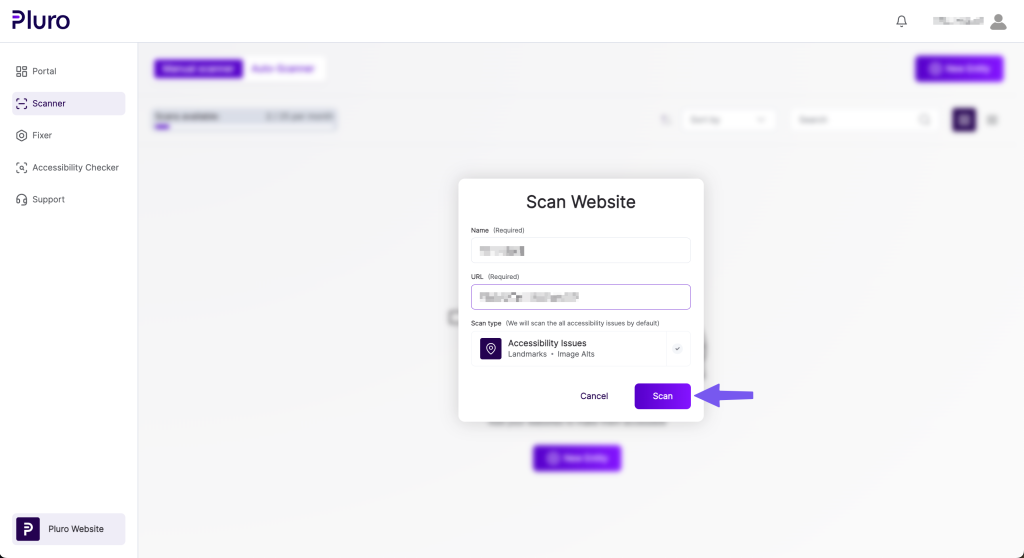
Step 5: Fill in the Entity Details & Start Scan
- Name the entity: Provide a name that helps you easily identify this part of your website.
- Enter the entity URL: Input the URL of the page or section you want to scan.
- Click the “Scan” button to start the manual scan.
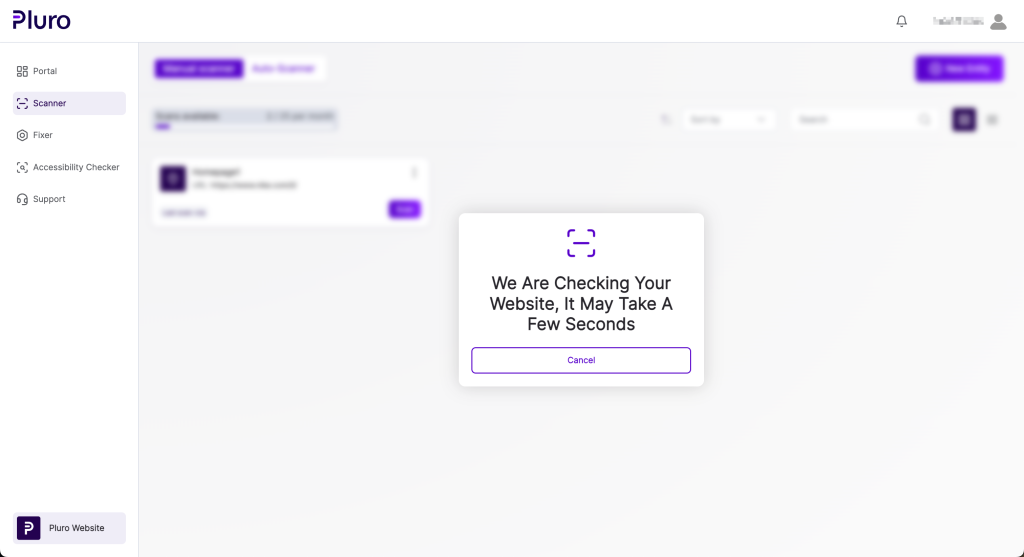
Step 6: Scan in Progress
- The entity is now being scanned. Wait for the scan to complete.
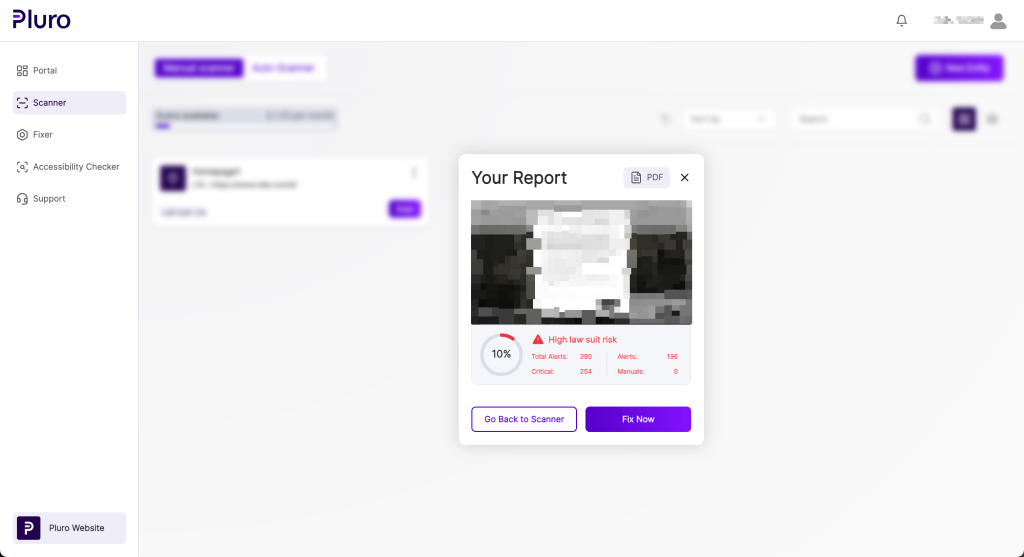
Step 7: View the Scan Results
Once the scan is finished, you’ll be able to view the results:
- Download the Report: You can download a PDF file of the scan report.
- Fix the Issues: Click “Fix Now” to go directly to the Fixer tool and address the issues identified in the scan.
- Return to Scanner: If you want to scan more entities, click “Go Back to Scanner” to continue adding and scanning other sections of your website.
Frequently Asked Questions (FAQ)
1. How often can I run manual scans?
You can perform manual scans as often as you need, but keep in mind that there is a scan limit for each website based on its license plan. Check your plan details to understand your scan allowance.
2. Can I perform a manual scan on any part of my website?
Yes, you can run a manual scan on any page, template, or section of your website that has a unique URL. Just create a new entity and input the URL to get started.
3. How long does a manual scan take?
Most manual scans should be completed within 30-45 seconds, but it may take longer for more complex entities, depending on the size and content of the page being scanned.
4. Can I edit the entity details after the scan is complete?
Once the scan is finished, the entity details are locked for that particular scan. If you want to scan the same entity with updated information, create a new entity with the revised details.
5. What do I do after the scan finishes?
Once the scan is complete, you can view the results, download a PDF report, or click “Fix Now” to resolve the issues using the Fixer tool.
6. Can I scan multiple entities manually at the same time?
No, you can only scan one entity at a time manually. However, you can queue up additional entities and scan them one after the other.
