
Fixing Accessibility Issues
Pluro’s Fixer tool allows you to resolve accessibility issues quickly and efficiently. The tool helps you address problems identified by the Scanner with no-code fixes for simple issues and AI-powered guidance for more complex ones. Follow these steps to fix accessibility issues on your website.
Step 1: Access the Fixer Tool
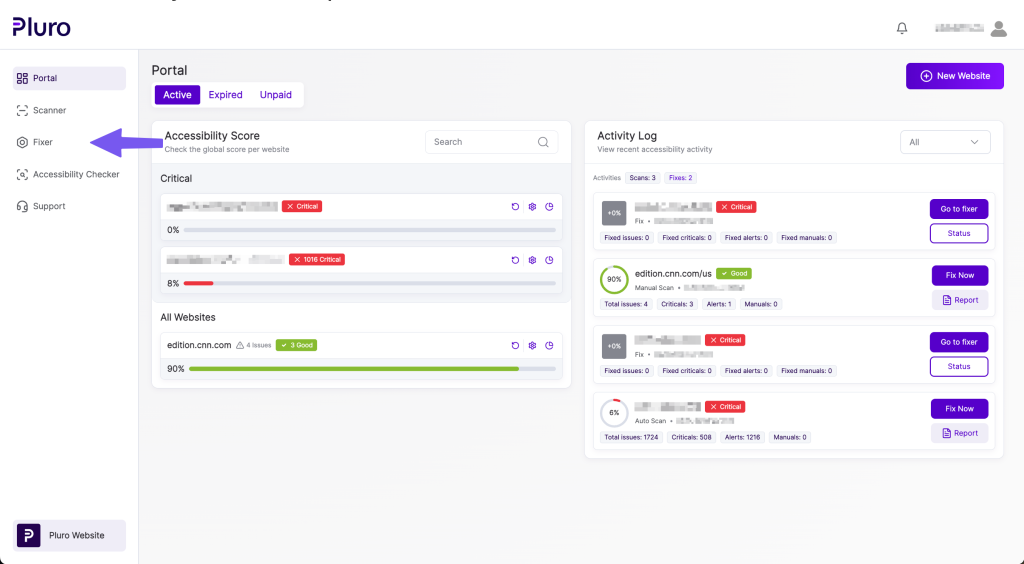
- From anywhere in the platform, click the Fixer button in the main menu on the left.
Step 2: Select Your Website
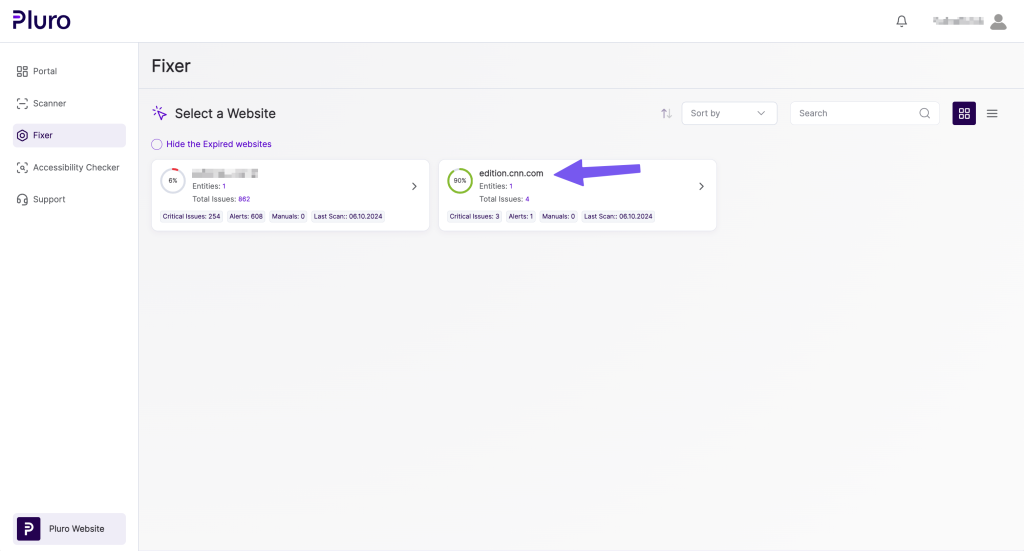
- Choose the website you want to fix from the list of websites.
Step 3: Select an Entity to Fix
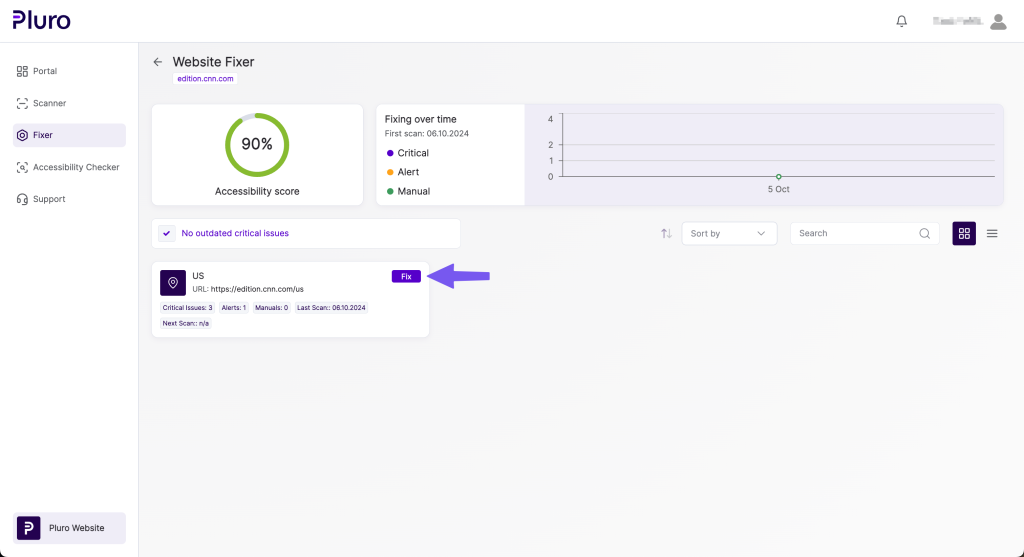
- Choose the entity (e.g., homepage, template) within the website that you want to fix.
- Click the “Fix” button.
On this screen, you can view your website’s accessibility score and the fixing history over time.
Step 4: The Fixer Screen
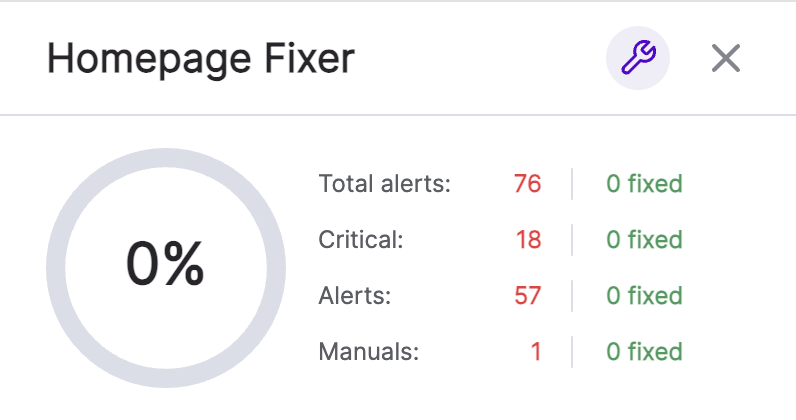
On the Fixer Screen, you will see the following:
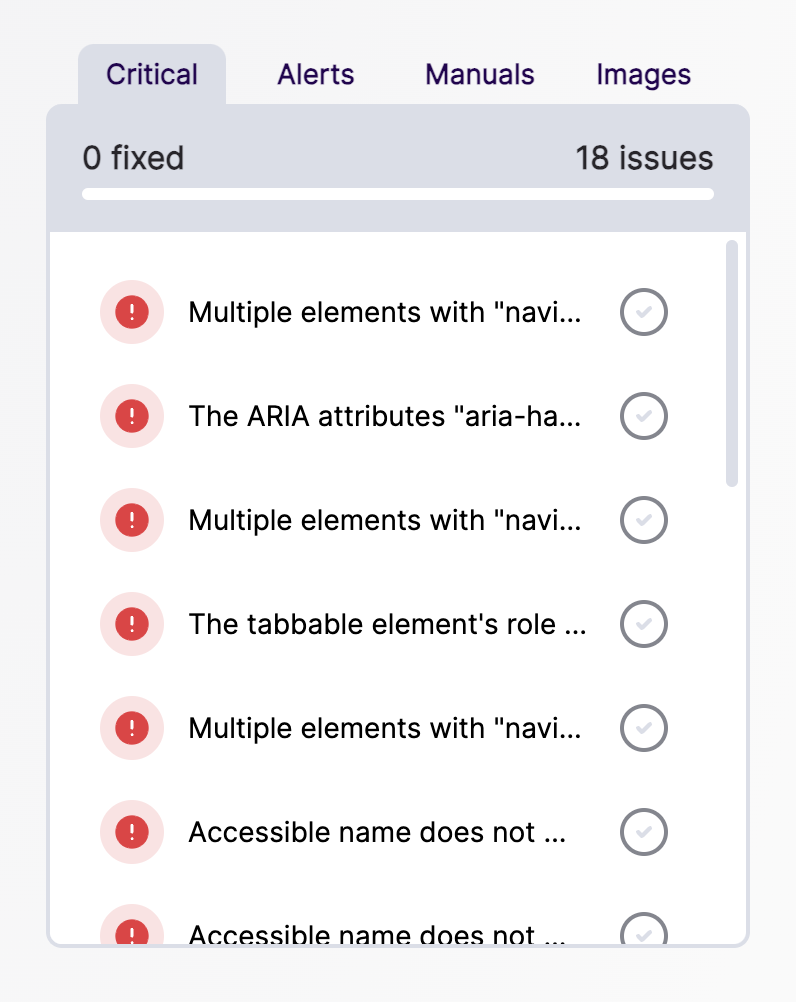
- Total Issues Found: Issues are broken down into:
- Critical: These are the most severe issues that impact accessibility significantly.
- Alerts: Moderate issues that need attention but are less critical.
- Manuals: Issues that require manual input or human review, often related to content or design.
Explanation: Critical issues affect key accessibility functionalities, Alerts are less severe but important, and Manuals often require human intervention or verification.
- Progress Bar: Shows the percentage of issues fixed out of all identified issues. Note: This is not the overall website accessibility score, just progress on fixing the identified issues.
- Issue List: A categorized list of issues, including options like adding alt text for images.
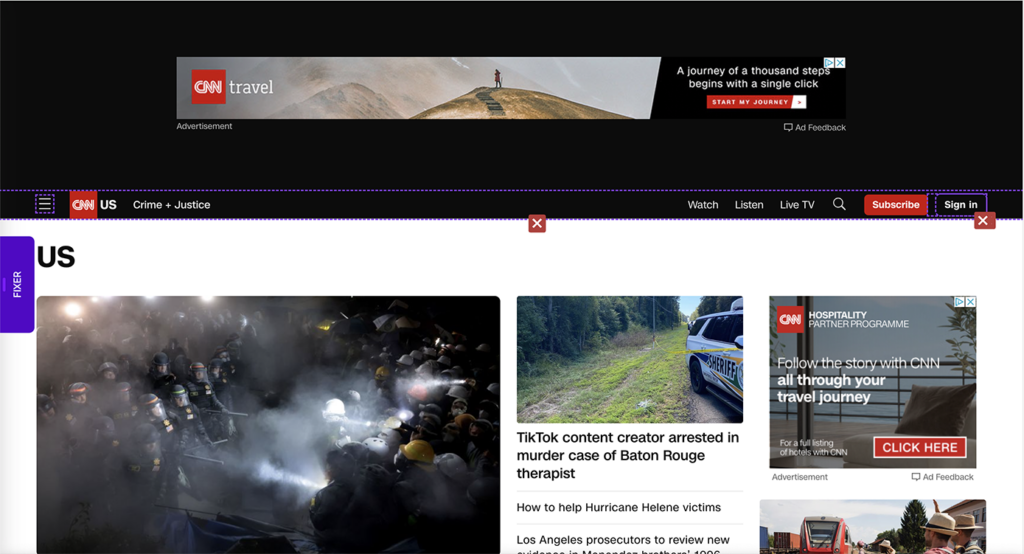
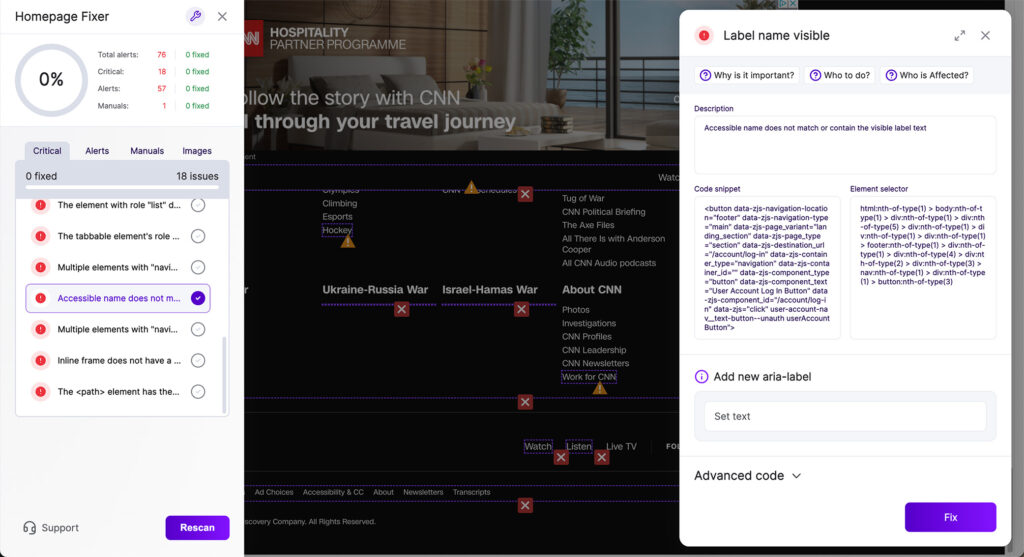
- Website Preview: A live preview of your website with the issues visually marked on it for easy reference.
Step 5: Fix an Issue
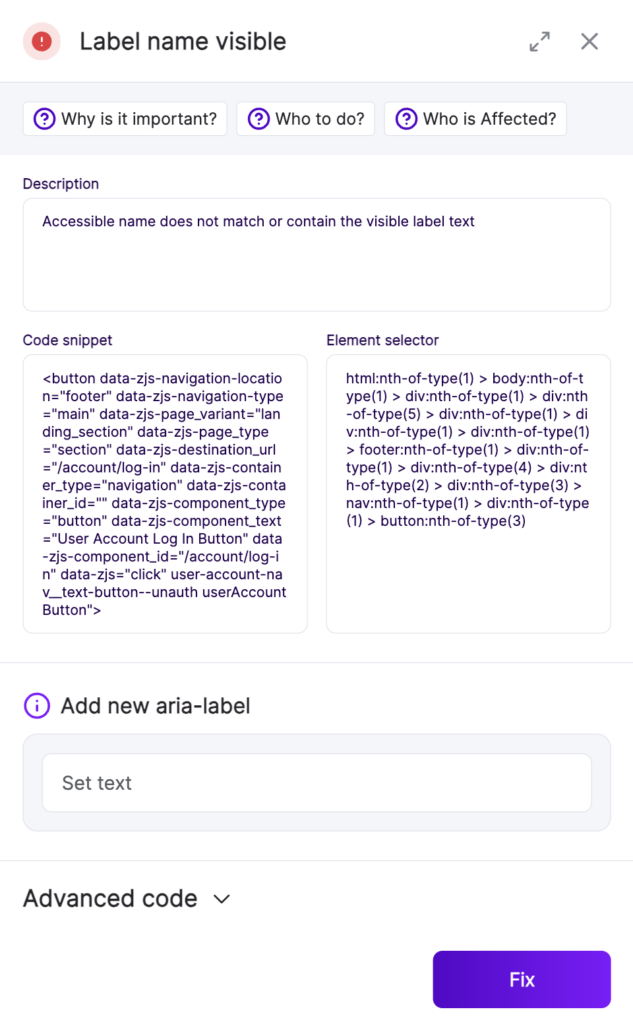
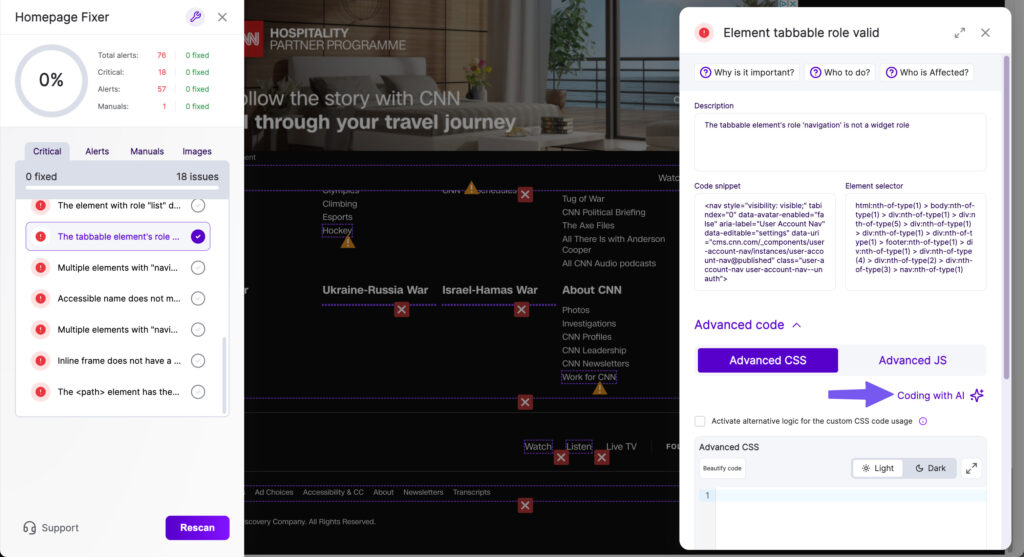
To start fixing an issue, click on any issue from the list. A Fixing Pop-Up will appear, displaying the following:
- Information Pane:
- Why is it important?: Explains why this issue is significant for people with disabilities and how it affects them.
- What to do?: A concise explanation of how the issue should be fixed (or what our Fixer does to resolve it).
- Who is affected?: Describes which types of disabilities are impacted by this issue.
- Description: A detailed description of the specific issue found on your website.
- Code Snippet: A preview of the code snippet that will be applied to your website to fix the issue.
- Element Selector: Identifies the element on your website where the issue was found.
Step 6: Fixing Types
- Simple Issues: These are easy fixes. Simply input the necessary value (e.g., alt text) and click the “Fix” button.
- Advanced Issues: These are more complex and may require custom programming. But don’t worry—our AI provides a solution. Click the “Coding with AI” button to generate a suggested code snippet.
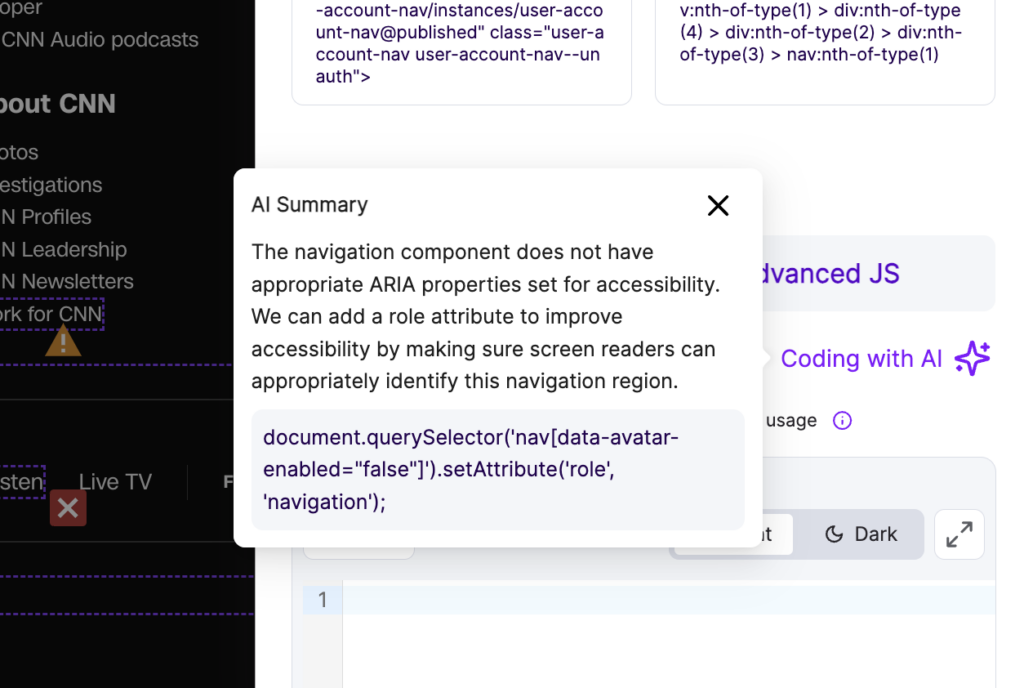
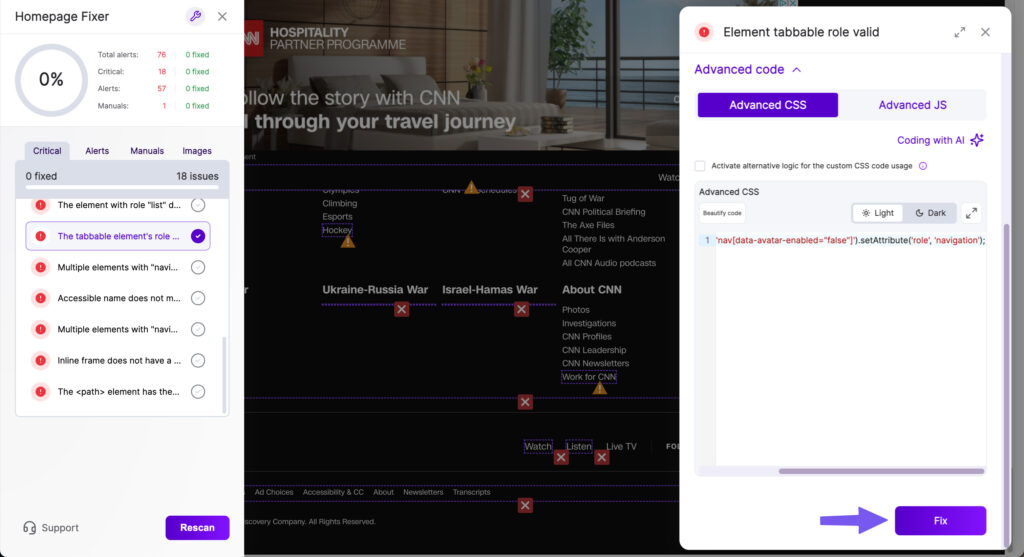
- which you can then paste into the code box. If you prefer to write the code yourself, you can do that too!
- Once the issue is resolved, click the “Fix” button.
Step 7: Mark the Issue as Fixed
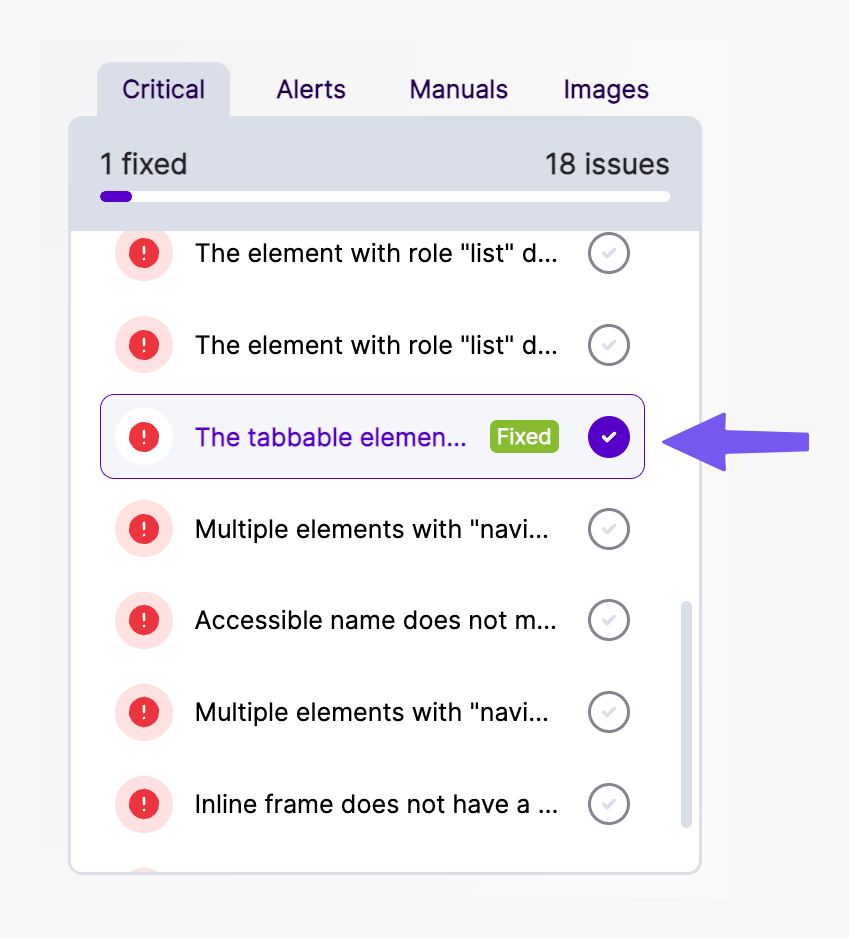
- Once you’ve completed the fix, the issue will appear as Fixed, so you know it no longer requires attention.
Step 8: Review the Summary Screen
After all the issues in the entity are resolved, you will see the Summary Screen, which displays:
- Number of Issues Fixed: Shows how many issues were successfully resolved.
- Impact on Accessibility Score: Indicates how fixing the entity affected your website’s overall accessibility score.
- Total Time Taken: Shows how long it took you to fix all the issues—see how fast and efficient the process is!
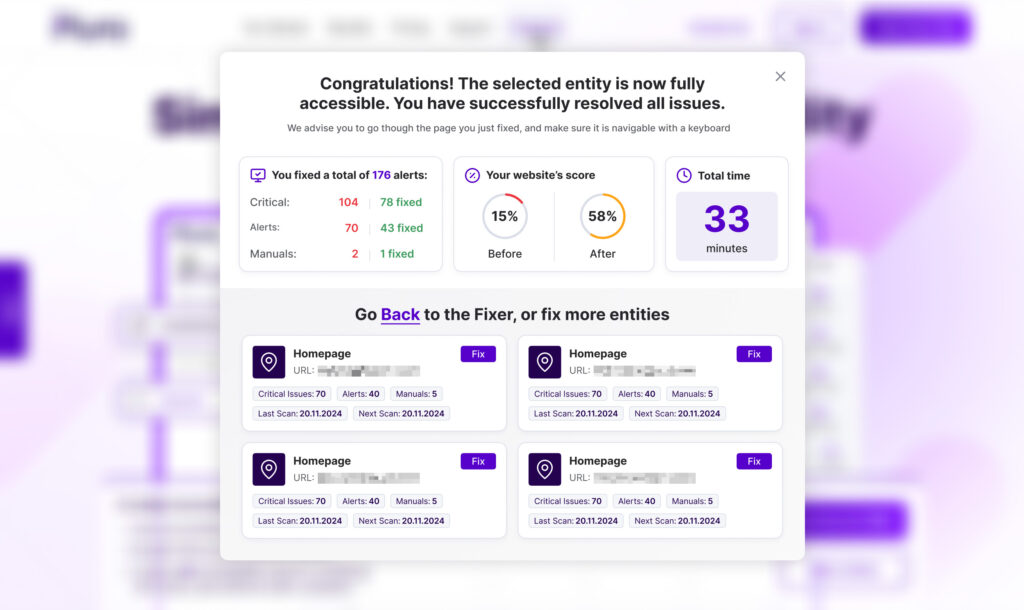
Step 9: Continue Fixing
From the summary screen, you can:
- Return to the Fixer screen to review other issues.
- Select the next entity to fix directly from the summary screen.
Frequently Asked Questions (FAQ)
1. What types of issues can I fix using the Fixer tool?
The Fixer tool helps you resolve a wide range of accessibility issues, including critical errors, alerts, and manual reviews. These include missing alt text, insufficient color contrast, and other common accessibility problems.
2. What is the difference between critical, alert, and manual issues?
- Critical: These are high-priority issues that significantly impact accessibility and must be fixed to comply with standards like WCAG.
- Alerts: These are moderate issues that affect accessibility but are less severe than critical ones.
- Manuals: These are issues that require human input, such as deciding on appropriate alt text for an image.
3. Do I need coding skills to fix accessibility issues?
No coding skills are required for most fixes. Pluro’s Fixer provides no-code solutions for simple issues. For more advanced issues, you can use our AI-guided suggestions to generate a code snippet, or you can input custom code if you prefer.
4. How does the AI assist with fixing complex issues?
For advanced issues, the AI generates a code snippet that addresses the problem. Simply click “Coding with AI” to get the recommended code, then paste it into the provided field. You can modify the code or add your own if needed.
5. How do I know if an issue has been successfully fixed?
Once you fix an issue, it will be marked as Fixed in the Fixer tool. This lets you know that the issue no longer requires attention.
6. Does fixing an issue immediately update my website?
Yes, once you fix an issue in the Fixer tool and apply the changes, the update will reflect on your website without needing to access the source code directly.
7. How does fixing issues impact my website’s accessibility score?
Fixing issues improves your website’s accessibility score by resolving the problems flagged during the scan. The summary screen will show how your fixes have impacted the overall accessibility score.
8. How long does it take to fix an issue?
Simple issues, like adding alt text, can be fixed in seconds. More complex issues may take longer, but the AI suggestions help speed up the process.
9. Can I fix multiple entities at the same time?
You can only fix one entity at a time. After completing one entity, you can move on to the next and repeat the process.
11. Why doesn’t AI automatically fix advanced issues?
While AI is powerful, we believe human oversight is essential for advanced issues. Reviewing the AI’s suggested fix ensures it fits your specific website context and reduces the chance of errors.
