Monitoring
Checking Website Accessibility Status
Keeping track of your website’s accessibility status is crucial for ensuring ongoing compliance and improvement. In Pluro’s portal, you can easily check the accessibility status of any website to monitor its performance over time and address any issues as they arise.
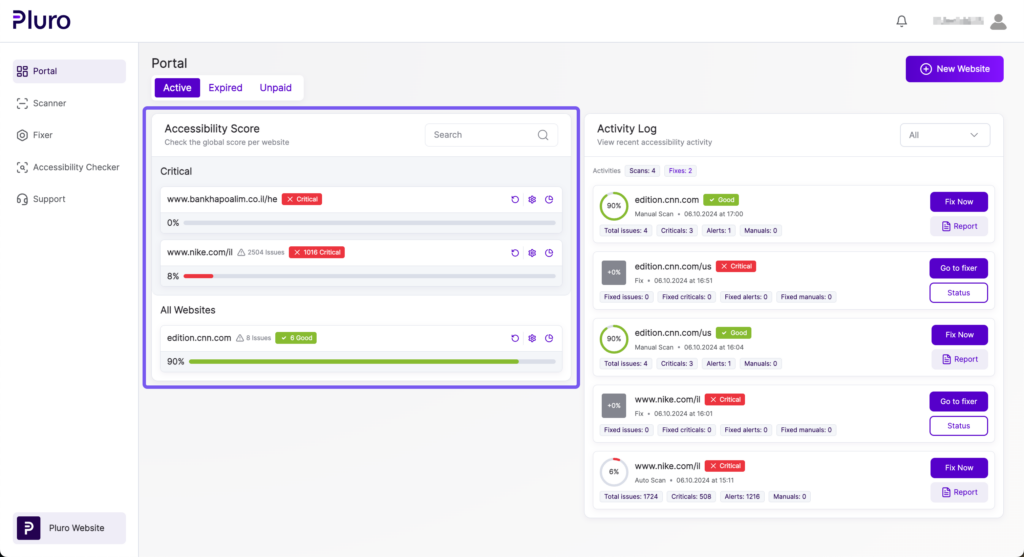
Step 1: Access the Website List
- In the portal, you will see a list of all your websites. The websites are listed in order of their criticality, helping you prioritize which websites need attention first.
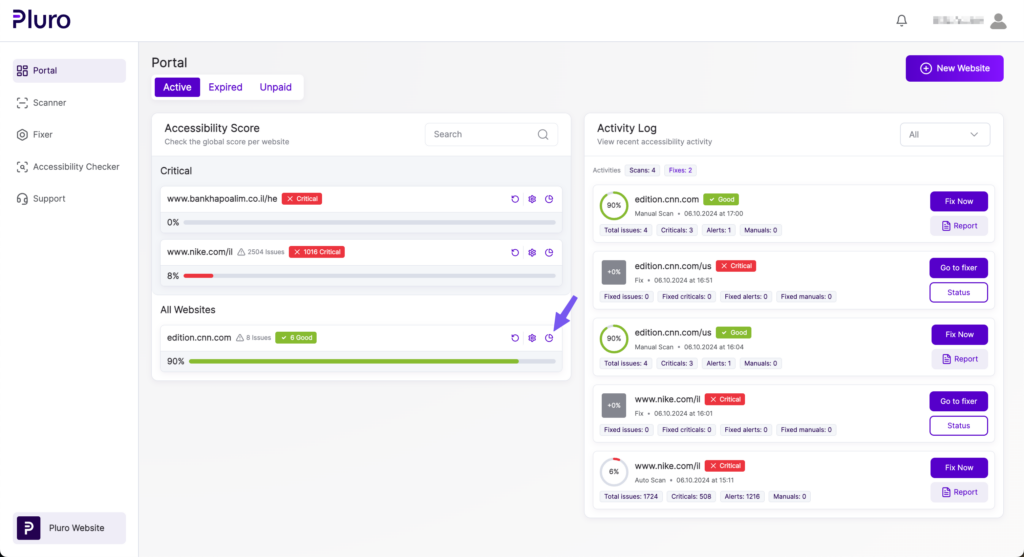
Step 2: Select a Website
- Click the Website Overview button next to the website you want to check for accessibility status.
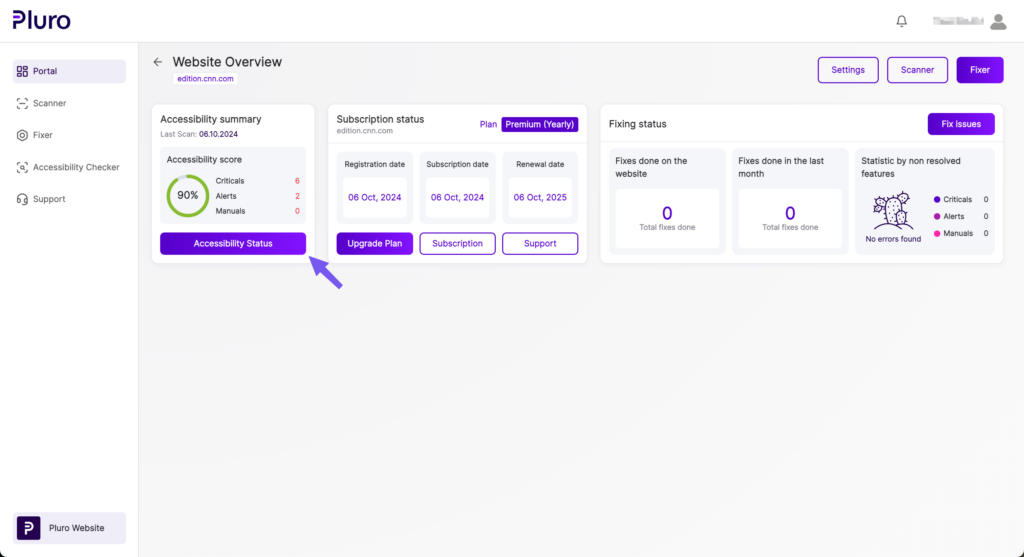
Step 3: View the Website Overview
- In the Website Overview screen, you will see:
- The Accessibility Summary, which provides a quick view of your website’s current status.
- Subscription Information, showing your website’s current subscription plan and renewal details.
- The Fixing Summary, showing how many issues have been fixed and how many are still unresolved.
Step 4: Check Accessibility Status
- Click the Accessibility Status button to see more detailed information about your website’s accessibility.
Step 5: Review the Detailed Accessibility Status
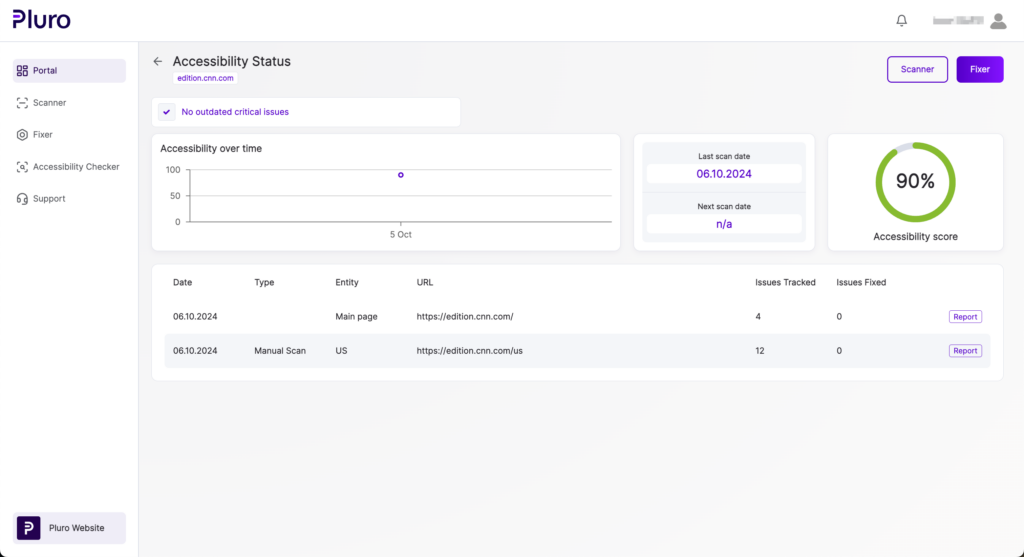
- In the Accessibility Status screen, you can check:
- Your website’s Accessibility Score over time.
- The Last Scan Date and the Next Scheduled Scan Date.
- A history of all previous scans, showing what issues were detected and how many were fixed.