
Getting Started
Onboarding for New Users
Sigining Up
Follow these steps to create your Pluro account and get started:
Step 1: Access the Pluro Sign-Up Page
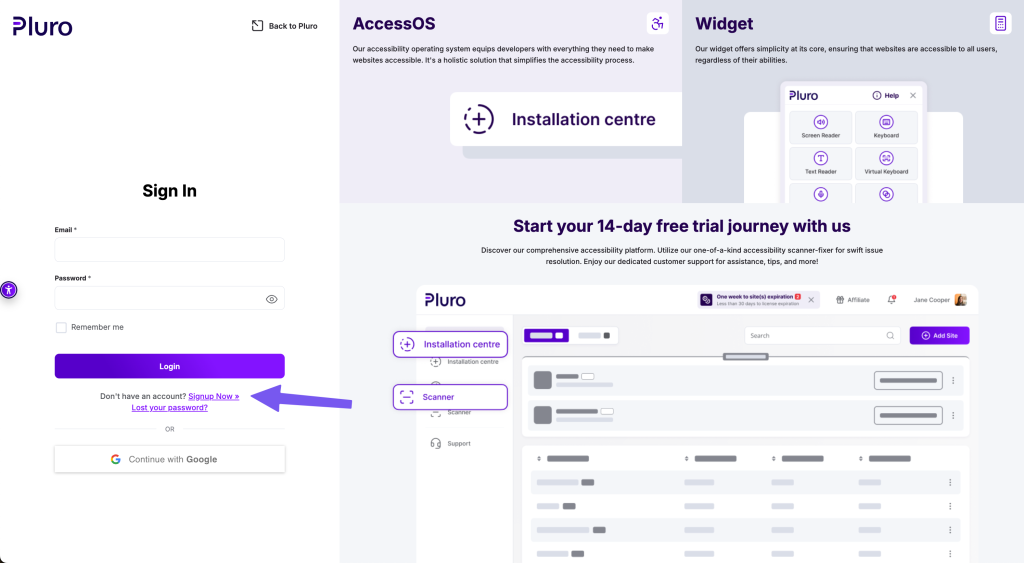
- Go to https://my.pluro.ai and click the “Sign Up Now” button.
Step 2: Enter Your Details and Complete Registration
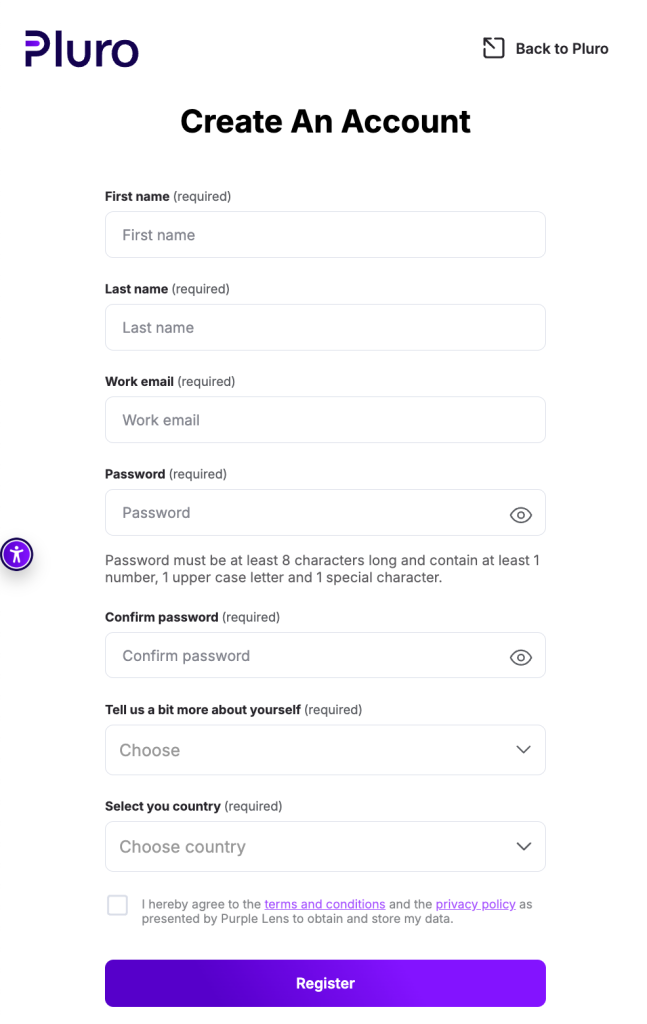
- Fill in the required fields (Name, Email, Password) and then click “Register”.
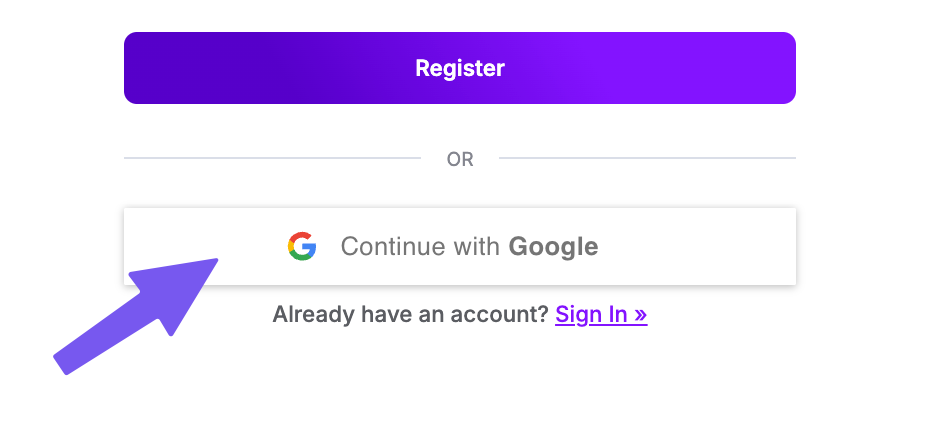
- Alternatively, you can choose to sign up with Google SSO by using your Google Workspace account.
Step 3: Access Your Portal
- After successfully registering, you’ll be redirected to the Pluro portal, where you can begin adding your websites and managing accessibility.
Logging In
Once you have an account, follow these steps to log in to Pluro:
Step 1: Access the Login Page and Log In
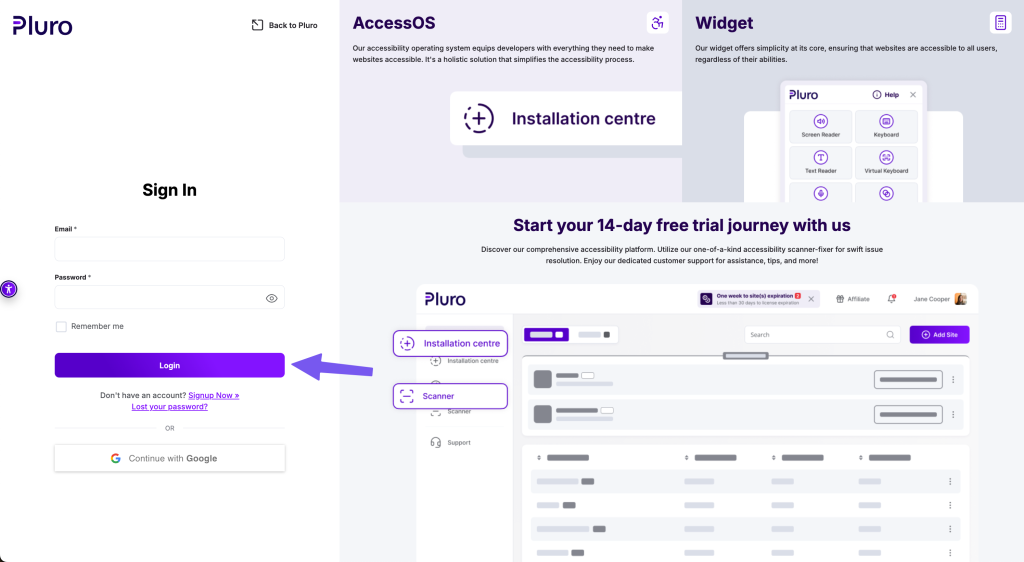
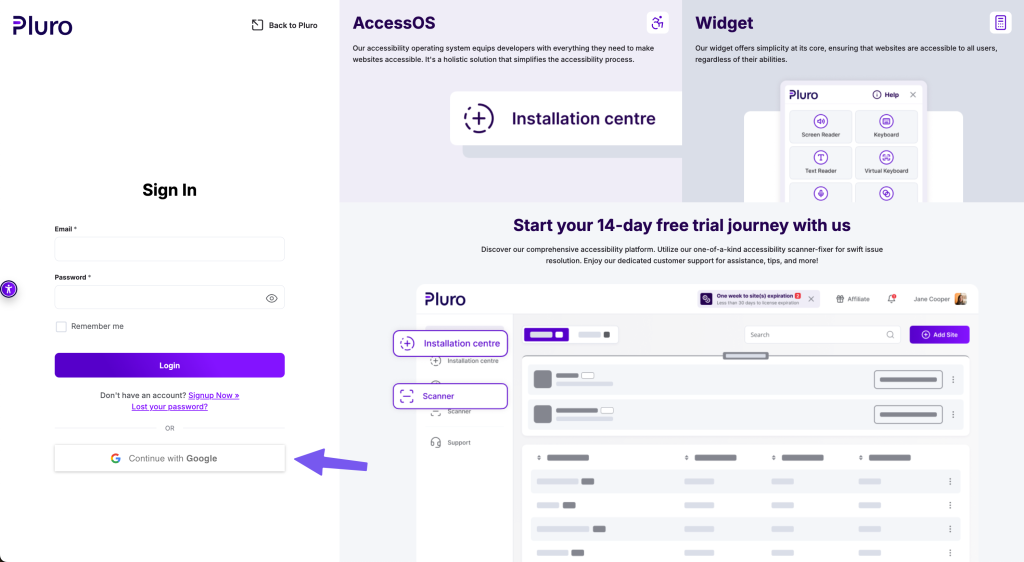
- Go to https://my.pluro.ai, enter your username and password, and click “Login” to access your account.
Step 2: Log In with Google SSO (Optional)
- If you prefer, you can log in using Google SSO with your Google Workspace account.
Step 3: Access Your Portal
- After logging in, you’ll be taken to your personalized Pluro portal where you can manage websites, monitor accessibility, and configure settings.
Login Troubleshooting
- Problem: Forgotten password.
- Solution: Click the “Forgot Password” link on the login page and follow the instructions to reset your password.
- Problem: Unable to log in using Google SSO.
- Solution: Ensure you’re logged into your Google Workspace account in the same browser, and try again. If the issue persists, log out and log back into Google, then retry.
