
The Portal
The Pluro Portal is your central hub for managing website accessibility. From this screen, you can easily track your websites’ accessibility scores, view recent activity, and take action on any critical issues. Here’s a breakdown of how to navigate and use the portal effectively.
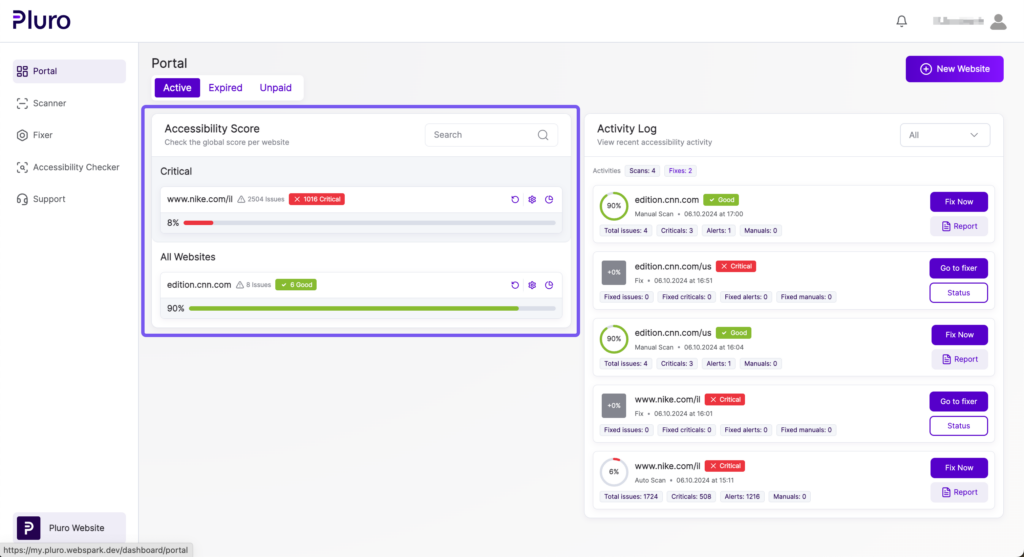
1. Website List & Accessibility Score
At the top of the portal, you’ll see a list of your websites sorted by criticality, with key information for each site:
- Accessibility Score: Displayed as a percentage, color-coded to indicate the status (green for good, red for critical).
- Critical Issues: Shows the total number of issues, with the number of critical issues highlighted.
- Quick Access Icons: Use these icons to see the website overview or settings. You can also refresh the website’s cache.
2. Activity Log
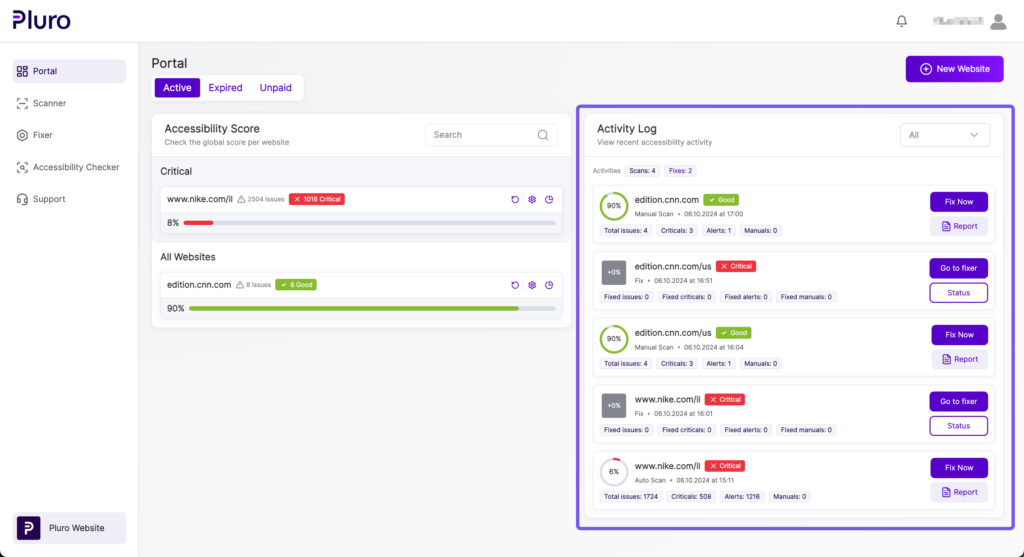
On the right side of the screen, the Activity Log shows a detailed history of recent accessibility actions:
- Scans and Fixes: For each website, the log shows the type of activity (e.g., manual scan, auto scan, fixes), the number of issues found, and the issues resolved.
- Status: Click the Status button to view the detailed accessibility status of a specific scan, including a breakdown of critical, alert, and manual issues.
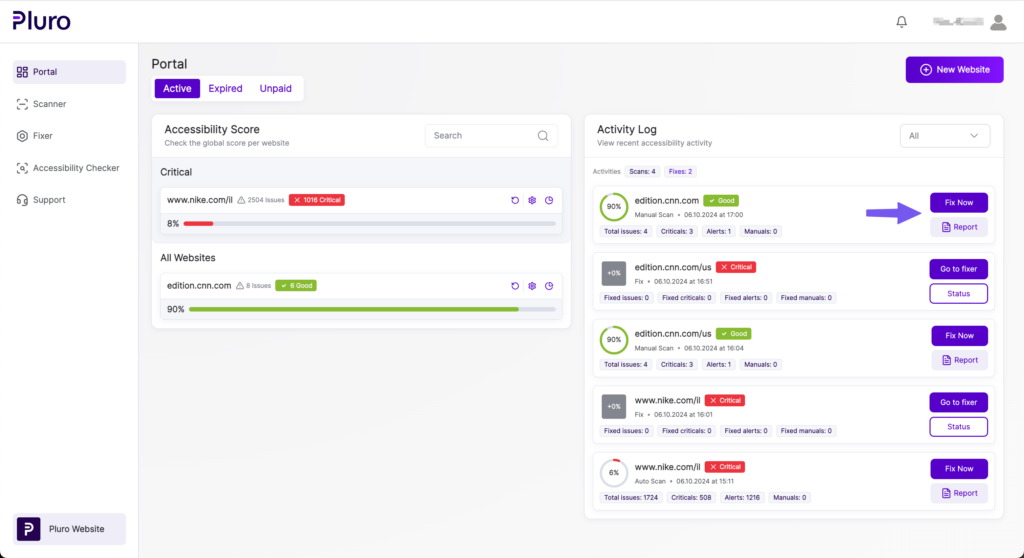
- Fix Now: For any site with unresolved issues, you can click Fix Now to jump directly to the Fixer and start resolving problems.
3. Filtering and Search
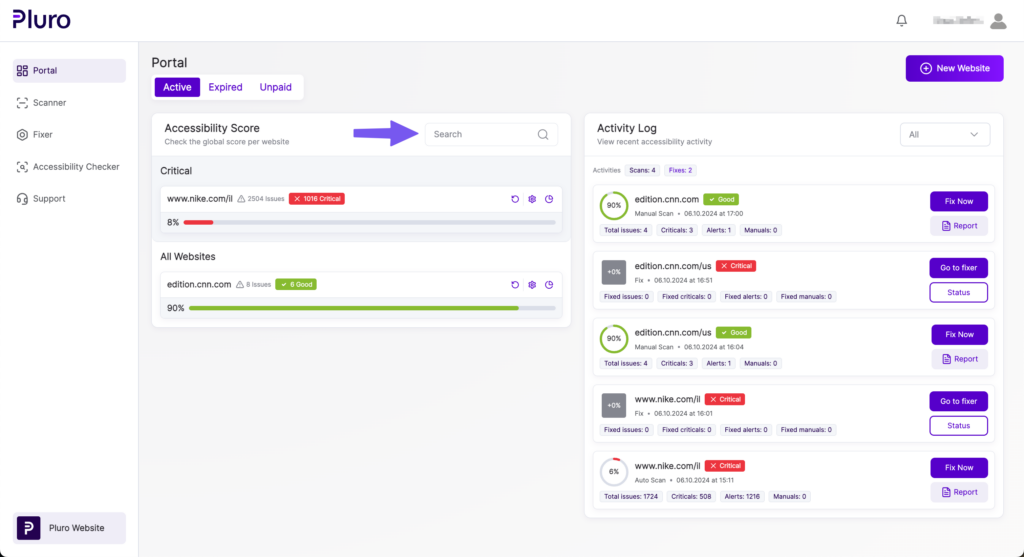
You can filter the websites in the portal by Active, Expired, or Unpaid subscriptions, ensuring you always know which sites need attention. The search bar allows you to quickly locate a specific website by name.
4. Alerts & Quick Actions
The portal highlights any critical issues that require immediate attention. If a website has a significant number of critical issues, it will appear in red, indicating that it needs urgent action. You can click Go to Fixer to directly address these problems or generate a Report to share with your team.
5. Adding a New Website
To add a new website for monitoring, simply click the New Website button in the top-right corner. From there, you can enter the site details and start scanning immediately.
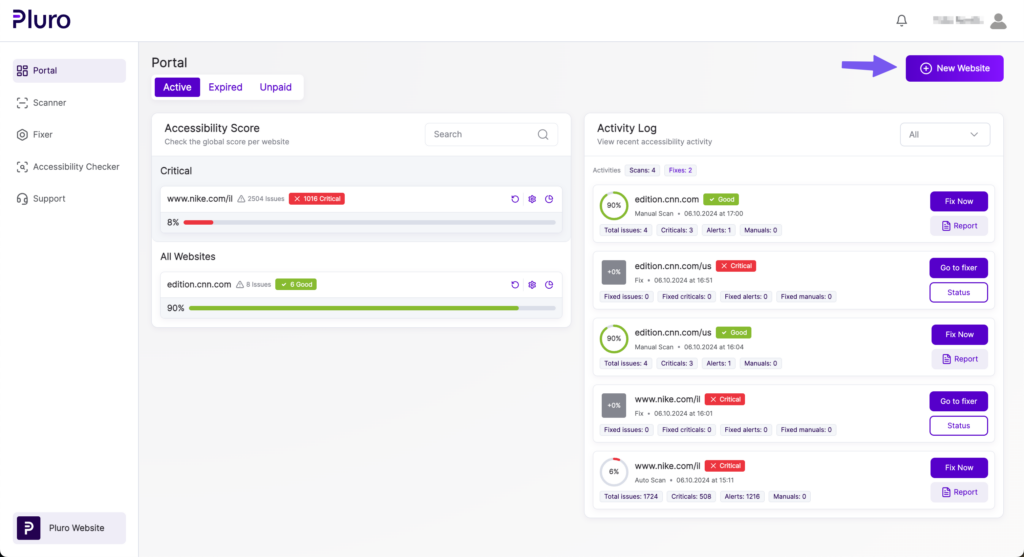
The Pluro Portal provides an at-a-glance view of your entire website accessibility landscape. With real-time data, activity tracking, and quick access to fixing tools, you can ensure that your sites are continuously monitored and fully accessible.
