
Scheduling Automated Scans
Automating accessibility scans in Pluro ensures that your website is regularly checked for compliance without manual intervention. By scheduling scans for different parts of your site, you can continuously monitor accessibility and address issues as they arise. Follow the steps below to schedule an automated scan for any part of your website.
Steps to Schedule a New Automated Scan
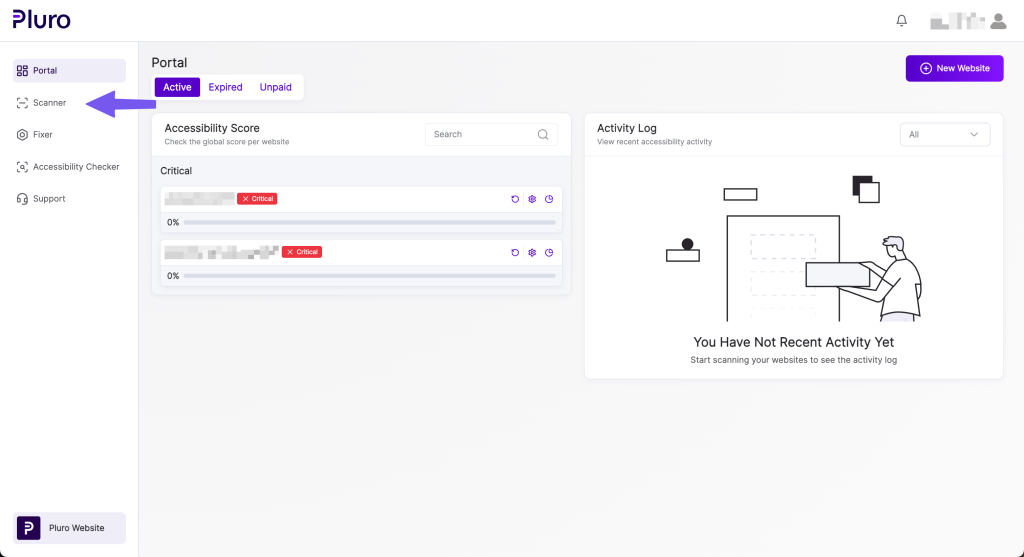
Step 1: Access the Scanner
- Log into the Pluro portal and, from any screen, click the Scanner button in the main menu.
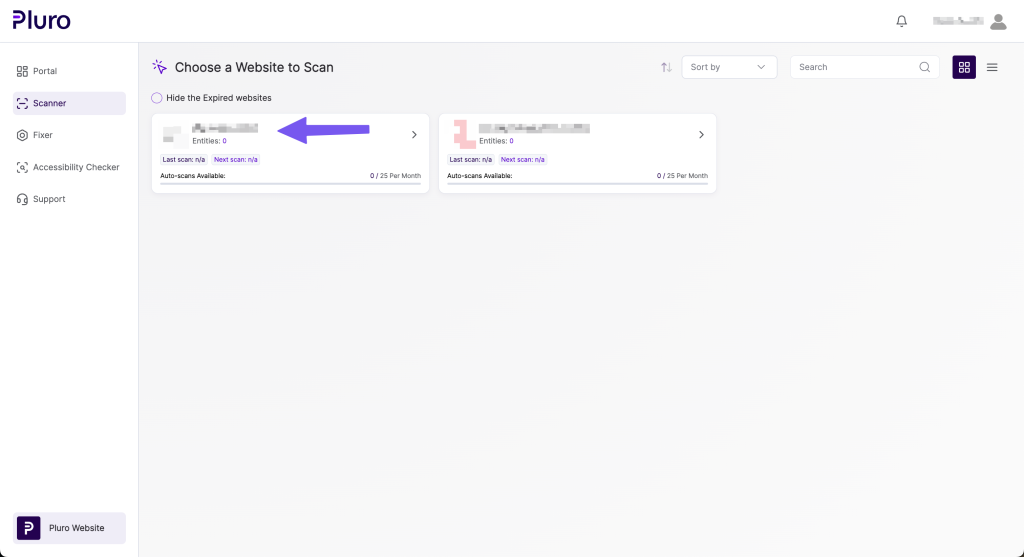
Step 2: Select Your Website
- From the list of websites, click the website you want to schedule a scan for.
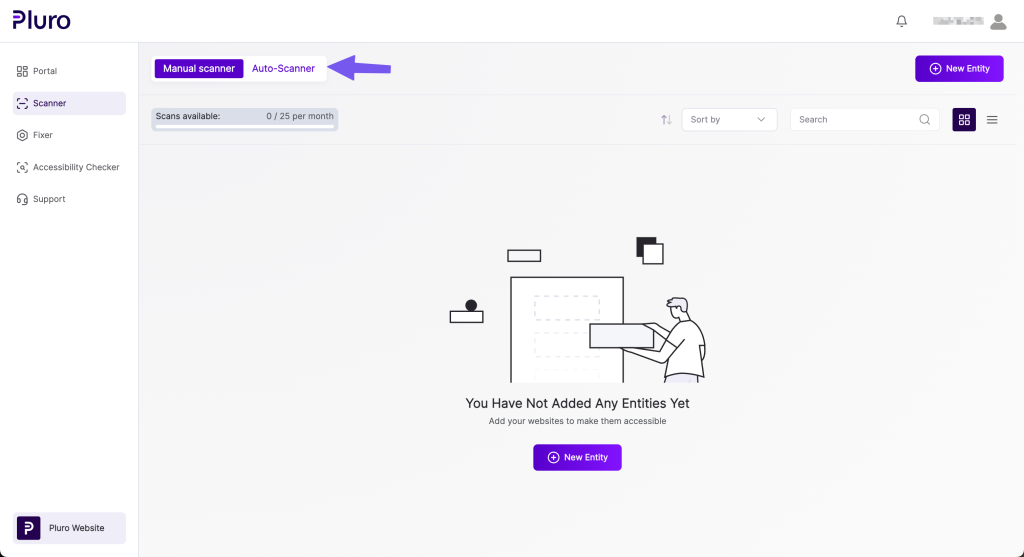
Step 3: Navigate to the Auto Scanner Tab
- Click on the Auto Scanner tab to open the scan scheduling options.
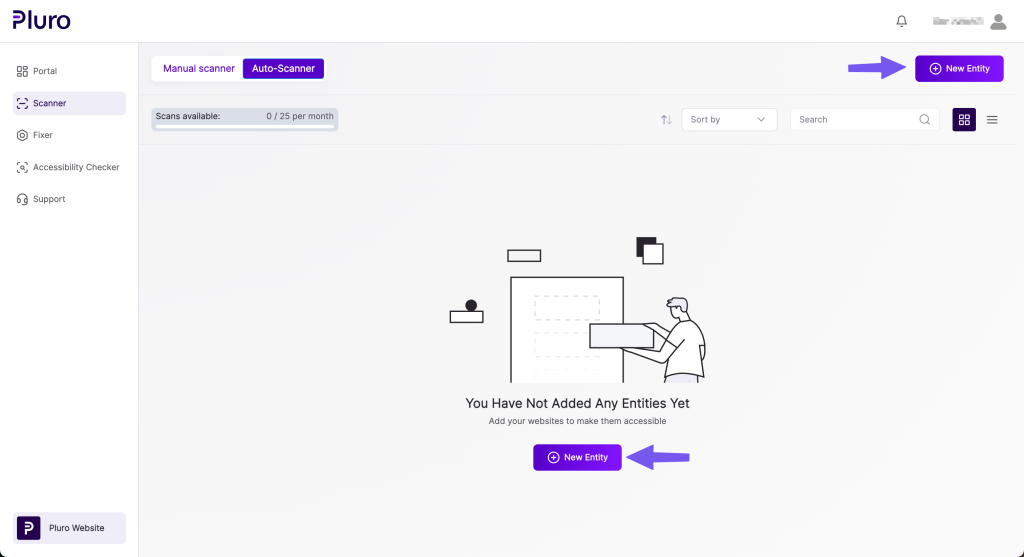
Step 4: Click ‘New Entity’
- Click the “New Entity” button to start scheduling a new scan.
What is an Entity?
An entity is any part of your website that can be scanned for accessibility issues. It could be your homepage, a specific page, a template, or even a landing page—basically, anything with a unique URL that needs monitoring.
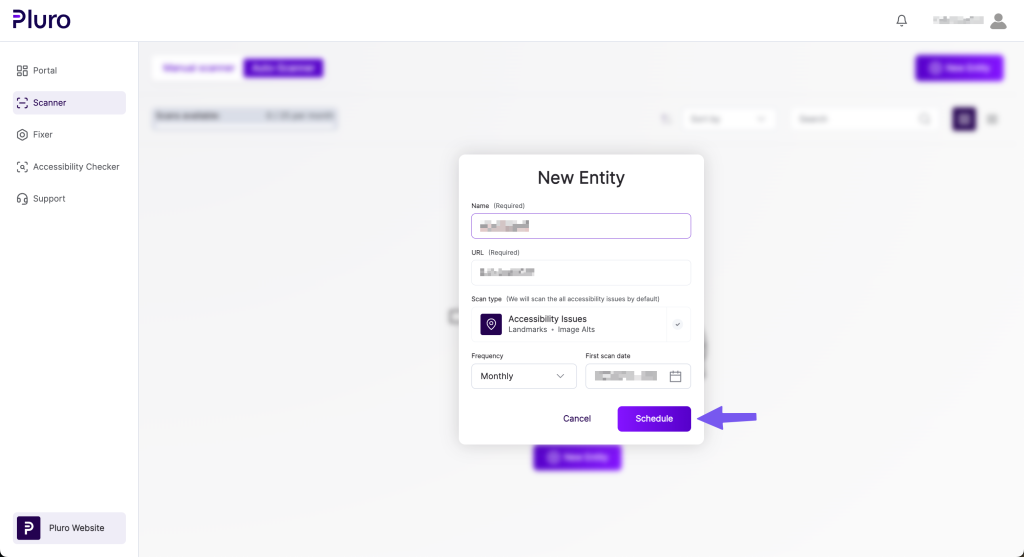
Step 5: Fill in the Entity Details $ Schedule the Scan
- Name the entity: Give the entity a name that helps you identify it easily.
- Enter the entity URL: Input the URL of the specific page or section you want to scan.
- Choose the frequency: Select how often you want the scan to occur. Note that the available frequency options may differ depending on your license plan.
- Set the date of the first scan: Choose the date for when the first scan will take place.Once all details are filled in, click the “Schedule” button.
Step 6: Confirmation
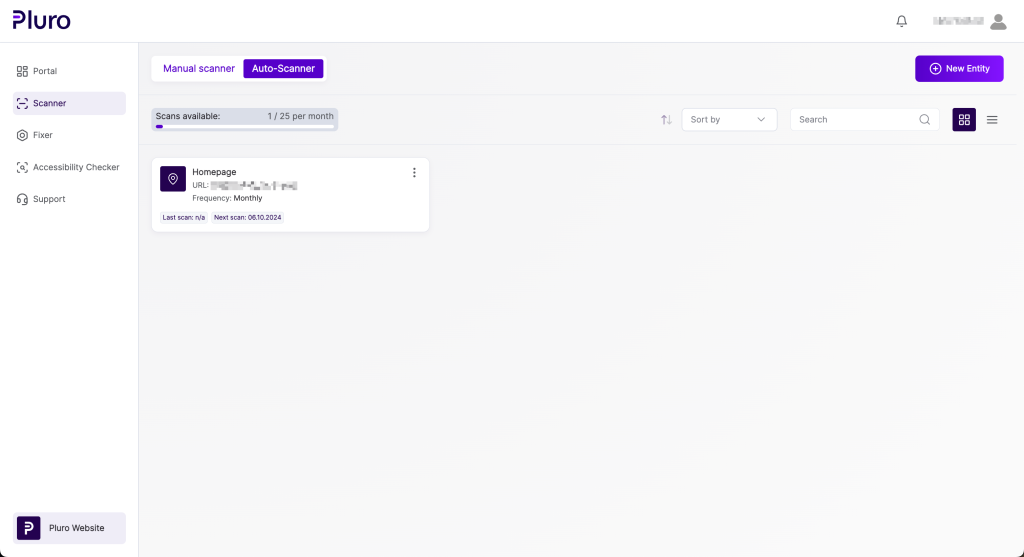
- Your scheduled scan is now set! The first scan will occur on the date you selected, and it will repeat according to the frequency you specified. You can view and manage this scheduled scan in the Scanner section of the platform.
Frequently Asked Questions (FAQ)
1. Can I schedule multiple entities to be scanned at the same time?
Yes, you can schedule scans for multiple entities (such as pages, templates, or sections). However, there is a limit to the number of scans you can schedule, which varies depending on your license plan. Check your plan details for the specific limit.
2. How often can I run scans?
The frequency of scans depends on your license plan. Options may range from daily to monthly scans, and the available options will be shown when setting up a new entity.
3. Can I change the frequency of a scan after it has been scheduled?
Yes, you can modify the frequency of a scan. To do this, go to the Auto Scanner tab, select the entity, click Edit, and adjust the frequency as needed.
4. What happens if my website changes after scheduling the scan?
If there are any changes to your website (such as URL structure updates or new pages), you can manually adjust the scheduled scans by updating the entity details or adding new entities.
5. How do I know if a scan was successful?
Once a scan is completed, you’ll receive a notification in your Pluro portal. You can also check the status and results of each scan in the Scanner section.
